9 File Permissions
- Describe how Unix determines file ownership and access permissions.
- Interpret the permissions listed in the
ls -loutput and explain what they allow. - Use
chmod,chgrp, andchownto change access and ownership to files and directories.
9.1 Who owns a file?
When you list files with ls -l, you see important information about who owns a file and who can view or modify it.
File ownership and access control should be considered at two levels:
- Who is the individual user who owns it?
- Which groups of users can access it?
On Unix systems, every user belongs to one or more groups, which allows flexible access control across different files and directories. For example, a shared directory in a research group might be accessible to all group members, whilst a restricted directory might be accessible only to external collaborators.
Two special groups are worth noting:
- Private primary group: every user belongs to a private group with the same name as their username. This is a placeholder group for the user alone.
sudogroup: users who can execute administrative commands belong to this group.
To see which groups you belong to, use:
groupsparticipant sudo usersThe ls -l output shows both the file owner and the group associated with it. Consider this example:
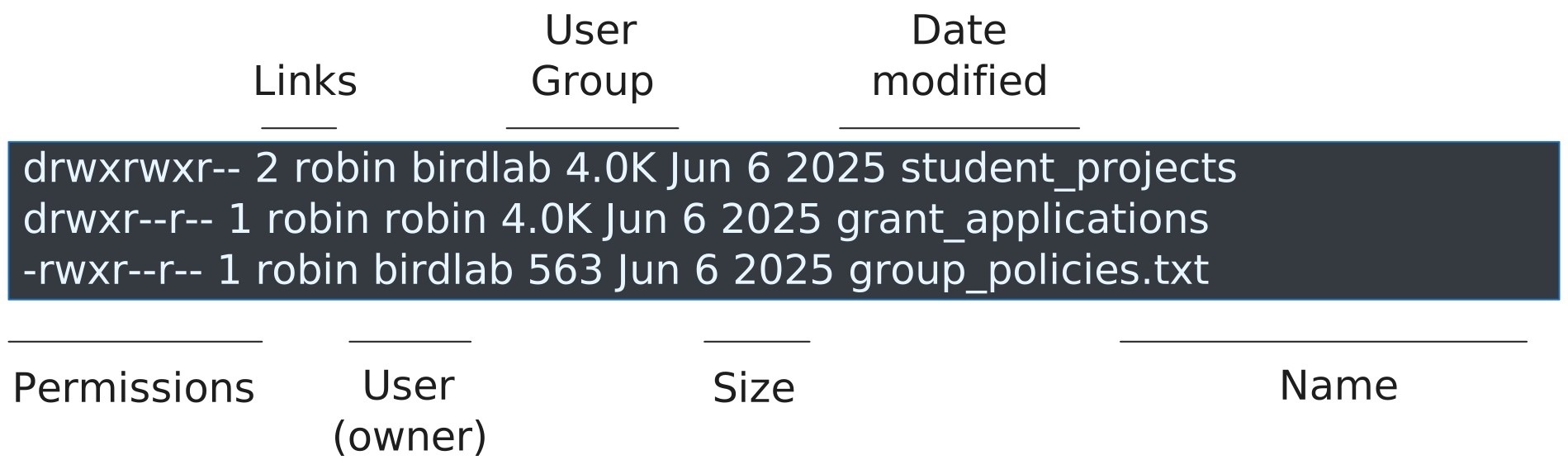
- All the files and directories belong to the user
robin, giving them full control over their access permissions. - The directory
student_projectsand the filegroup_policies.txtbelong to a group calledbirdlab. Members of this group can have specific access permissions to these items. - The directory
grant_applicationsbelongs to the privaterobingroup. Other users can only access it ifrobinsets permissions for all users.
Now we can consider what permissions control access to files.
root user
On Unix systems, files and directories with restricted access are often owned by a special user called root. These are typically essential system files and directories, for example, files containing system-wide software installations or important system configuration.
Trying to access a protected directory typically results in an error:
ls -l /root"/root": Permission denied (os error 13)Examining the root directory (ls -l /) shows very restrictive permissions:
drwx------ 6 root root 4096 Mar 23 14:47 rootTo access files or run commands owned by root, you must belong to the special sudo group. This group membership allows you to run commands as root with unrestricted access by prepending them with the sudo command.
For example:
sudo ls /root/This prompts for your password, then runs successfully (assuming you belong to sudo).
9.2 Permissions: read, write, execute
At the beginning of each ls -l output, a series of characters indicates the type of file and the permissions associated with it.
These characters split into four parts:
       permissions
    _________________
d    rwx    rwx    rwx
|     |      |      |
|     |      |      Other users
|     |      Group
|     User
Type
of file
The first character indicates the file type:
d→ a directory-→ a regular filel→ a symbolic link
The next nine characters represent permissions, organised into three groups of three. Each group applies to a different set of users:
- Characters 1–3: your (owner’s) permissions
- Characters 4–6: permissions for users in the group
- Characters 7–9: permissions for all other users
Each group of three characters indicates:
r→ read permission: you can see the file/directory contents or copy the filew→ write permission: you can modify the file, or create files in a directoryx→ execute permission: you can run the file as a program; for directories, this lets you change into them withcd
A - in any position means that permission is not granted.
Consider this example:
drwxrwxr--  2  robin  birdlab  4.0K  Jun 6 2025  student_projects
drwxr--r--  1  robin  robin    4.0K  Jun 6 2025  grant_applications
-rwxr--r-- 1 robin birdlab 563 Jun 6 2025 group_policies.txtstudent_projects:
- The first
dindicates this is a directory. rwx(user):robinhas full read, write, and execute permissions.rwx(group): members ofbirdlabcan read, write to, and access the directory. They can inspect files, modify them, delete them, and create new entries.r--(other): other users can see the directory exists but cannot access it (withoutx, they cannotcdinto it).
grant_applications:
- This is a directory associated with Robin’s private group, so only Robin can access or modify it.
group_policies.txt:
- This is a regular file.
rwx(user):robinhas full permissions.r--(group and other): members ofbirdlaband other users have read-only access.
Directory permissions are separate from the permissions of files within them. Consider this example of a directory structure with their permissions, owner, and group:
student_projects    rwxrwx--- robin birdlab
├── project_a       rwxrwxr-- robin teamA
│  └── TODO.txt     rw-r--r-- robin teamA
└── project_b rwxrwxr-- robin teamB- Members of
birdlabcan accessstudent_projectsbecause they haverwxpermissions, and they can see both project folders because they have read (r) permission. - However, the permissions of each project directory determine who can access its contents.
project_ais owned byrobinwith groupteamA, so onlyteamAmembers can access it. The same applies toproject_bwithteamB. - Within
project_a, theTODO.txtfile hasrw-r--r--permissions, so only Robin can modify it; others can only read it.
9.3 Changing permissions: chmod
To change file permissions, use the chmod command. Two notations are available: numeric coding and symbolic notation.
The numeric coding system maps numbers to permission combinations:
| Number | Permissions |
|---|---|
| 7 | rwx read, write, execute |
| 6 | rw- read, write |
| 5 | r-x read, execute |
| 4 | r-- read only |
| 3 | -wx write, execute |
| 2 | -w- write only |
| 1 | --x execute only |
| 0 | --- no permissions |
For example:
chmod 660 README.txtassigns read and write permissions to both the user and group (two 6s), and no permissions to others (0).
The symbolic notation is easier to remember when modifying a single permission:
chmod u+w some_file.txt→ add write to userchmod g-w some_file.txt→ remove write from groupchmod o-rwx some_file.txt→ remove all permissions from otherschmod a+r some_file.txt→ add read to all users
When changing directory permissions, consider whether you want to apply the changes recursively to all files and directories within it. To do so, use the -R option.
When using symbolic notation recursively, consider the special uppercase X execution symbol. This symbol grants execute permission to directories (so users can cd into them), but avoids granting execute to regular files unless they already had it.
To give a group read and write access to all contents in a directory, use:
chmod -R g+rwX folder_nameThis ensures directories are executable (accessible) but regular files are not unnecessarily marked as executable.
9.4 Changing groups: chgrp
You can change the group a file belongs to using the chgrp command with this syntax:
chgrp <group_name> <file or directory name>Using the earlier example, if Robin wanted to give postdocs access to the grant_applications folder, and a postdocs group already existed, they could run:
# Change the group associated with the folder
chgrp -R postdocs grant_applications

# Add read, write and execute permissions
chmod -R g+rwX grant_applications
The -R option applies the group assignment recursively to all files and directories within the target. The uppercase X in chmod ensures that directories receive execute permissions (so users can access them), whilst regular files do not.
Only users with sudo permissions can create or modify groups.
- To create a new group:
sudo groupadd group_name - To add a user to a group:
sudo usermod -aG group_name username
9.5 Changing ownership: chown
Only the root user (via sudo) can change file ownership. Even if you own a file, you cannot change its ownership without root privileges.
Use chown with these common patterns:
sudo chown new_user README.txt→ the file is now owned bynew_user; the group remains unchangedsudo chown new_user:new_group README.txt→ the file is now owned bynew_userand assigned tonew_groupsudo chown -R new_user project→ the directory and all its contents are now owned bynew_user(the-Roption applies the change recursively)
9.6 Exercises
9.7 Summary
- File permissions determine who can read, write, or execute a file or directory. The output of
ls -ldisplays this information:- The first character in
ls -lindicates the file type. - The next nine characters are grouped into owner, group, and other permissions.
r,w, andxrepresent read, write, and execute access.
- The first character in
- Ownership and groups control access on shared systems.
ls -lshows the owner and associated group.groupsshows which groups your user belongs to.- Shared projects often rely on group-based permissions.
- Some useful commands to manage access and ownership are:
chmodchanges permissions with symbolic or numeric notation.chgrpchanges the group associated with a file or directory.chownchanges the owner, but requiressudo.