This is an archived version of the course - please consider using the latest version.
5 Job Paralellisation
- Distinguish between different kinds of parallel computations: multithreading within a job and job parallelisation across independent jobs.
- Use SLURM job arrays to automatically submit several parallel jobs.
- Customise each parallel job of an array to use different input -> output.
5.1 Parallelising Tasks
One of the important concepts in the use of a HPC is parallelisation. This concept is used in different ways, and can mean slightly different things.
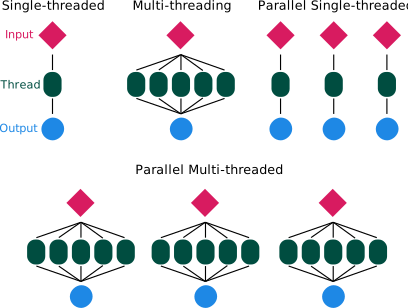
A program may internally support parallel computation for some of its tasks, which we may refer to as multithreading or multi-core processing. In this case, there is typically a single set of “input → output”, so all the parallel computations need to finish in order for us to obtain our result. In other words, there is some dependency between those parallel calculations.
On the other hand, we may want to run the same program on different inputs, where each run is completely independent from the previous run. In these cases we say the task is embarrassingly parallel. Usually, running tasks completely in parallel is faster, since we remove the need to keep track of what each task’s status is (since they are independent of each other).
Finally, we may want to do both things: run several jobs in parallel, while each of the jobs does some internal parallelisation of its computations (multithreading).
Terminology Alert!
Some software packages have an option to specify how many CPU cores to use in their computations (i.e. they can parallelise their calculations). However, in their documentation this you may be referred to as cores, processors, CPUs or threads, which are used more or less interchangeably to essentially mean “how many calculations should I run in parallel?”. Although these terms are technically different, when you see this mentioned in the software’s documentation, usually you want to set it as the number of CPU cores you request from the cluster.
5.2 Job Arrays
There are several ways to parallelise jobs on a HPC. One of them is to use a built-in functionality in SLURM called job arrays.
Job arrays are a collection of jobs that run in parallel with identical parameters. Any resources you request (e.g. -c, --mem, -t) apply to each individual task of the array. This means that you only need to submit one parent job, making it easier to manage and automate your analysis using a single script.
Job arrays are created with the SBATCH option -a START-FINISH where START and FINISH are integers defining the range of array numbers created by SLURM. SLURM then creates a special shell variable $SLURM_ARRAY_TASK_ID, which contains the array number for the task being processed. Later in this section we will see how we can use some tricks with this variable to automate our analysis.
For now let’s go through this simple example, which shows what a job array looks like (you can find this script in the course folder job_scripts/parallel_arrays.sh):
# ... other SBATCH options omitted ...
#SBATCH -o job_logs/parallel_arrays_%a.log
#SBATCH -a 1-3

echo "This is task number $SLURM_ARRAY_TASK_ID"
echo "Using $SLURM_CPUS_PER_TASK CPUs"
echo "Running on:"
hostname
Submitting this script with sbatch job_scripts/parallel_arrays.sh will launch 3 tasks. The %a symbol is used in our standard output filename (-o) and will be replaced by the array number, so that we end up with three files: parallel_arrays_1.log, parallel_arrays_2.log and parallel_arrays_3.log. Looking at the output in those files should make it clearer that $SLURM_ARRAY_TASK_ID stores the array number of each job, and that each of them uses 2 CPUS (-c 2 option). The compute node that they run on may be variable (depending on which node was available to run each job).
You can define job array numbers in multiple ways, not just sequencially.
Here are some examples taken from SLURM’s Job Array Documentation:
| Option | Description |
|---|---|
-a 0-31 |
index values between 0 and 31 |
-a 1,3,5,7 |
index values of 1, 3, 5 and 7 |
-a 1-7:2 |
index values between 1 and 7 with a step size of 2 (i.e. 1, 3, 5 and 7) |
5.3 Customising array tasks
As mentioned, $SLURM_ARRAY_TASK_ID stores the task number for a job array. Although this variable stores a single number, it can be used in multiple ways to flexibly customise our jobs.
Two example strategies, include:
- Setting a random seed for stochastic algorithms.
- Subsetting a configuration file (e.g. CSV), which is created ahead of the analysis.
5.3.1 Strategy 1: setting a random seed
The first strategy is to directly use the array job number as a random seed to a stochastic algorithm. For example, our pi_estimator.py script has a --seed option, allowing us to set a random seed for the algorithm. To run 100 simulations using a reproducible seed for each, we could do:
# ... other SBATCH options omitted ...
#SBATCH -a 1-100

python3 pi_estimator.py --seed $SLURM_ARRAY_TASK_ID
This would run 100 simulations, each using a random seed going from 1 to 100. You could use an array in a different range, for example -a 3001-3100 for seeds going from number 3001 to 3100. In this case, the number range doesn’t matter so much as the total number of tasks in the array, which in this case should be 100.
5.3.2 Strategy 2: subset a configuration file
A more flexible way to automate our jobs is to use the array task number to subset a CSV file that contains input parameters for our analysis.
For example, the file data/turing_model_parameters.csv includes parameter values we want to use with a simulator we will use in our next exercise.
cat data/turing_model_parameters.csvf,k
0.055,0.062
0.03,0.055
0.046,0.065
0.059,0.061This is a CSV (comma-separated values) format, with two “columns” named “f” and “k”. Let’s say we wanted to obtain information for the 2nd set of parameters, which in this case is in the 3rd line of the file (because of the column header). We can get the Nth line of a file using the sed command (StackOverflow):
sed -n "3 p" data/turing_model_parameters.csv0.03,0.055To extract the two values that are separated by a comma, we can use the cut command, which accepts a delimiter (-d option) and a field we want it to return (-f option):
sed -n "3 p" data/turing_model_parameters.csv | cut -d "," -f 10.03In this example, we use comma as a delimiter field and obtained the first of the values after “cutting” that line.
Schematically, this is what we’ve done:
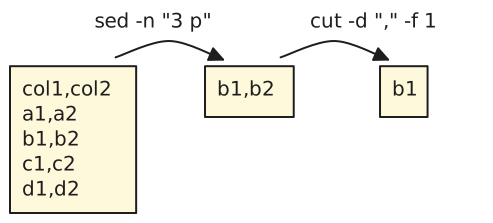
So, if we wanted to use job arrays to automatically retrieve the relevant line of this file as its input, we could use sed -n '$SLURM_ARRAY_TASK_ID p' <your_input_file> in our command pipe above.
You can put these ideas in practice in the exercises below.
5.4 Exercises
This exercise is composed of two equivalent sub-exercises:
- A bioinformatics-flavoured example of indexing a reference genome with the Bowtie 2 software.
- A more generic example that uses a Python script to run a simulation.
You can choose one of the two to start with (whichever one suits your work better), and then do the other one if you also have time.
Make sure you are in the workshop folder (cd ~/rds/hpc-work/hpc_workshop).
Continuing from our previous exercise where we prepared our Drosophila genome for bowtie2, we now want to map each of our samples’ sequence data to the reference genome.
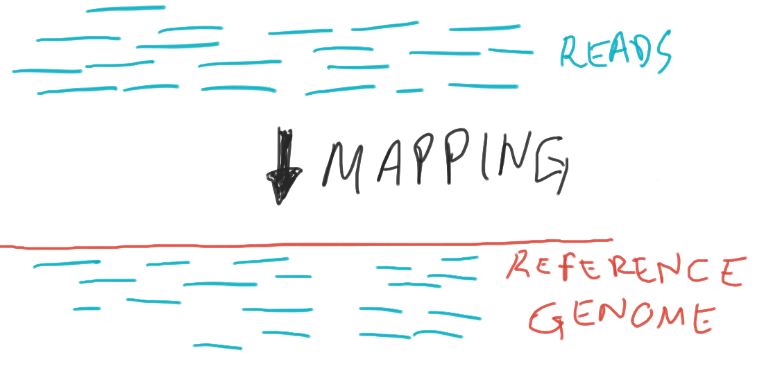
Looking at our data directory (ls hpc_workshop/data/reads), we can see several sequence files in standard fastq format. These files come in pairs (with suffix “_1” and “_2”), and we have 8 different samples. Ideally we want to process these samples in parallel in an automated way.
We have created a CSV file with three columns. One column contains the sample’s name (which we will use for our output files) and the other two columns contain the path to the first and second pairs of the input files. With the information on this table, we should be able to automate our data processing using a SLURM job array.
- Use Nano to open the SLURM submission script in
job_scripts/parallel_drosophila_mapping.sh. The first few lines of the code are used to fetch parameter values from the CSV file:- Fix your username in
#SBATCH -D. - Fix the
#SBATCH -aoption - this array should have as many jobs as we have samples in our CSV samplesheet. - Fix the
sedcommand further down the script. This command intends to fetch each line from the CSV samplesheet using the$SLURM_ARRAY_TASK_IDvariable.
- Fix your username in
- Launch the job with
sbatchand monitor its progress (squeue), whether it runs successfully (scontrol show job JOBIDorseff JOBID), and examine the SLURM output log files. - Check if you got the expected output files in the
results/drosophila/mappingfolder. (Note: the output files are text-based in a standard bioinformatics format called SAM.)
Study the submission script to see if you understand the code - and ask the trainers for clarifications if you are unfamiliar with some of the code we used.
Make sure you are in the workshop folder (cd ~/rds/hpc-work/hpc_workshop).
Continuing from our previous exercise where we ran a turing pattern model, we now want to test different parameter combinations to see which patterns emerge.


As a reminder, the python script to runs the model takes two inputs - named “feed” and “kill” - and outputs an image file. For example, this command:
python3 analysis_scripts/turing_pattern.py --feed 0.04 --kill 0.06 --outdir results/turing/would produce an image saved as results/turing/f0.04_k0.06.png.
To run multiple parameter combinations in parallel, the student has prepared a CSV file in data/turing_model_parameters.csv with parameter values of interest (you can look at the content of this file using cat).
Our objective is to automate running these models in parallel on the HPC.
- Use Nano to open the SLURM submission script in
job_scripts/parallel_turing_pattern.sh. The first few lines of the code are used to fetch parameter values from the CSV file:- Fix your username in
#SBATCH -D. - Fix the
#SBATCH -aoption - this array should have as many jobs as we have parameter combinations in our CSV file. - Fix the
sedcommand further down the script. This command intends to fetch each line from the CSV parameters file, using the$SLURM_ARRAY_TASK_IDvariable.
- Fix your username in
- Launch the job with
sbatchand monitor its progress (squeue), whether it runs successfully (scontrol show job JOBIDorseff JOBID), and examine the SLURM output log files. - Examine the output files in the
results/turing/folder. You should have several PNG files. These cannot be easily viewed on the HPC, but you can transfer them to your computer using Filezilla or the command-line (scporrsync), as will be covered in the File Transfer section.
5.5 Summary
- Some tools internally parallelise some of their computations, which is usually referred to as multithreading or multi-core processing.
- When computational tasks are independent of each other, we can use job parallelisation to make them more efficient.
- We can automatically generate parallel jobs using SLURM job arrays with the
sbatchoption-a. - SLURM creates a variable called
$SLURM_ARRAY_TASK_ID, which can be used to customise each individual job of the array.- For example we can obtain the input/output information from a simple configuration text file using the
sedcommand combined with the SLURM variable:sed -n "$SLURM_ARRAY_TASK_ID p"
- For example we can obtain the input/output information from a simple configuration text file using the
Further resources: